

Modern websites are no longer just static pages filled with text and images. Today, users expect websites to feel interactive, smooth, and visually engaging while they scroll.
From subtle fade-in effects to cinematic parallax sections and sticky storytelling layouts, scrolling animations have become an important part of modern web design.
Scrolling effects help improve storytelling, guide user attention, and make websites feel more modern and professional.
The key is using animation carefully instead of adding excessive motion across every section of the page.
In this guide, you’ll discover the most popular scrolling animations, learn where they work best, and explore best practices for creating smoother and more engaging website experiences.
Most Popular Types of Scrolling Animations
Here are the most common scrolling animation styles used on modern websites.
Fade In Animation
Fade-in effects are one of the simplest and most effective scrolling animations.
Elements appear smoothly as users scroll down the page.
Common uses include:
- Headings
- Cards
- Images
- Testimonials
- Blog sections
The subtle motion makes layouts feel more alive without distracting users.
Slide Animation
Slide animations move elements into view from the left, right, top, or bottom.
This effect creates directional movement and works well for:
- Feature sections
- Service blocks
- Portfolio items
- Landing page layouts
Slide effects are extremely popular in modern SaaS websites.
Parallax Scrolling
Parallax animation creates depth by moving background and foreground elements at different speeds.
This effect gives websites a cinematic feeling.
Parallax is commonly used in:
- Agency websites
- Travel websites
- Product storytelling pages
- Creative portfolios
Text Reveal Animation
Text reveal animations display words gradually while users scroll.
Popular styles include:
- Line-by-line reveals
- Word-by-word reveals
- Character animations
- Mask transitions
This technique works especially well for storytelling and hero sections.
Horizontal Scroll Sections
Some websites simulate horizontal movement while users continue scrolling vertically.
This effect is often used for:
- Product showcases
- Portfolios
- Timelines
- Image galleries
Horizontal sections can create highly immersive experiences when used carefully.
Sticky Scroll Animation
Sticky animations keep sections pinned while content changes during scrolling.
This creates dynamic storytelling experiences often seen on high-end landing pages.
Popular uses include:
- SaaS product demos
- Feature walkthroughs
- Timeline experiences
- Interactive presentations
How to Create Scrolling Animations Without Code
Creating scrolling animations used to require advanced JavaScript libraries. Today, visual tools make the process much easier.
Here are the most popular no-code approaches.
1. Animation Addons
Animation Addons offers many animation options, making it easy to create scrolling animation without coding.
You will find options like:
- Starter Templates (Live Copy Paste)
- No-Code Customization ( Elementor Editor Panel)
Let’s look at both option one by one.
Starter Templates (Live Copy Paste)
Starter Templates make it simple to build an animated WordPress website without coding or technical experience.
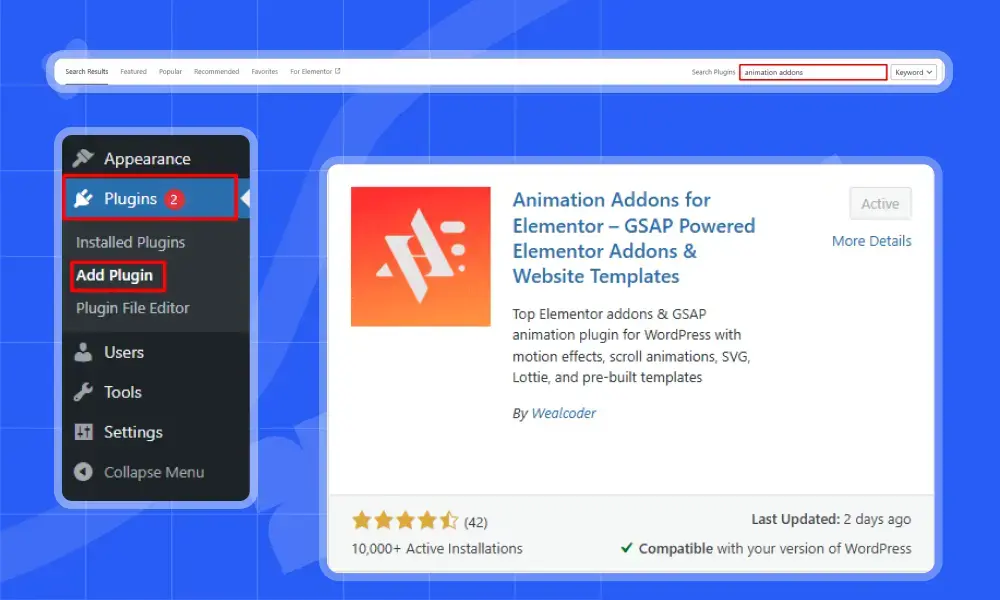
Before anything else, just install and activate “Animation Addons” to get started.
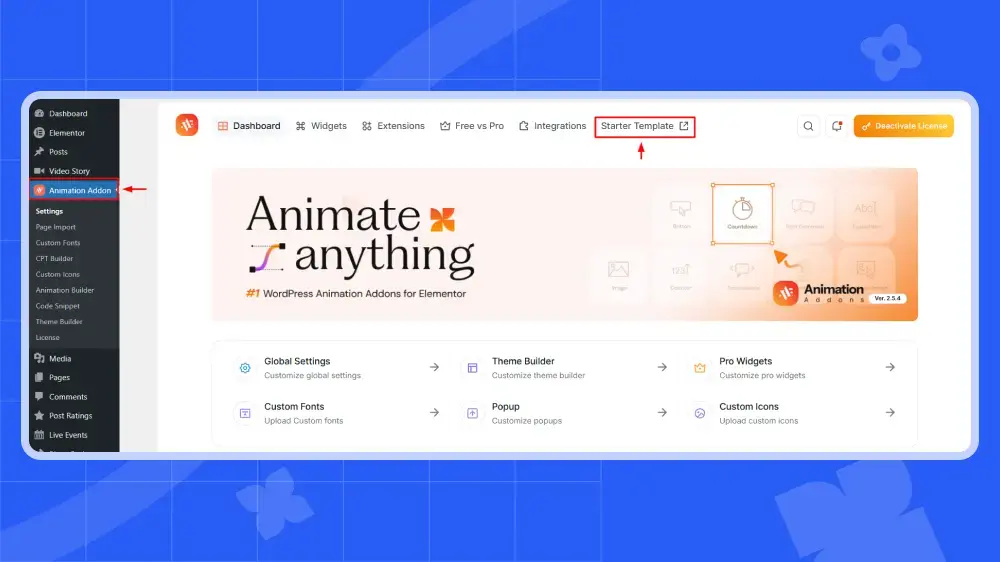
Next, go to the ‘Animation Addons’ and click on ‘Starter Template’ from the Animation Addons dashboard.
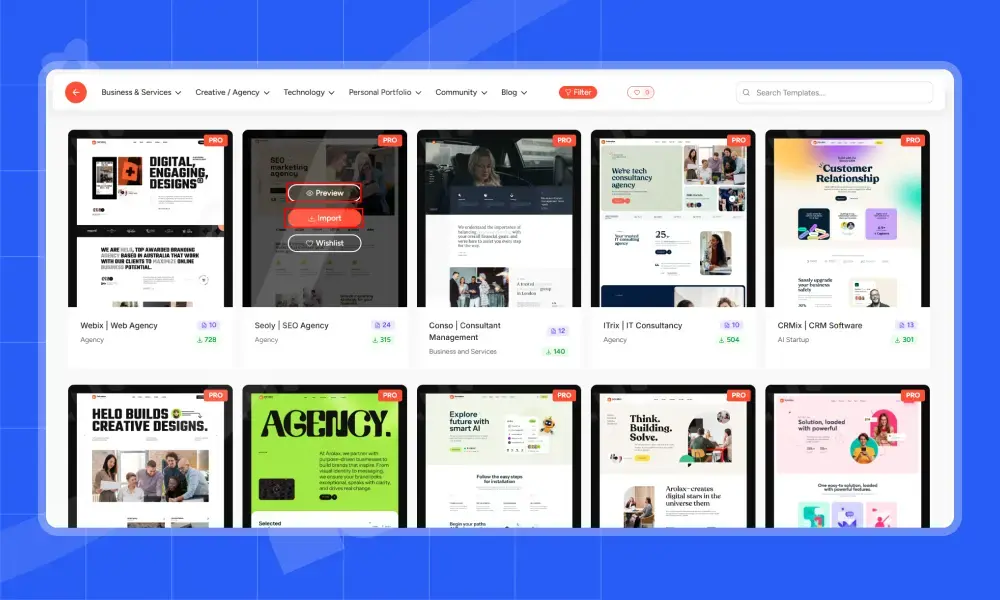
Once you click, you will have access to 200+ ready-made websites. Each site comes with animations for your niche, so you don’t need to create them separately.
You’ll also see categories, a search bar, and filters to help you find your niche easily.
Hover your mouse over any template to see the ‘Preview’ and ‘Import’ options. Click ‘Preview’ to check the site, and if you like it, click ‘Import.
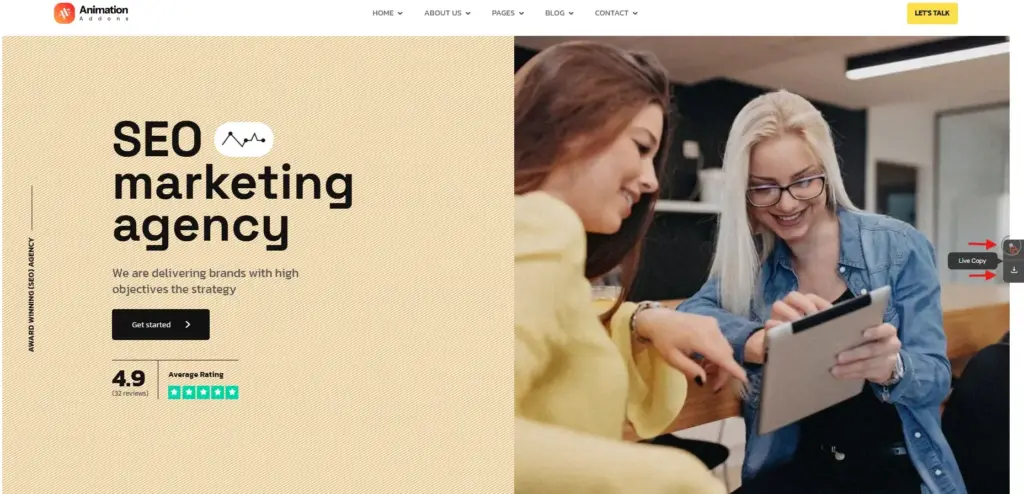
Once you click on ‘Preview’, you will see the Live Copy button and download option on the right panel of your screen. Simply hover over the button and click Live Copy to copy the section. You can also click Download to import the template.
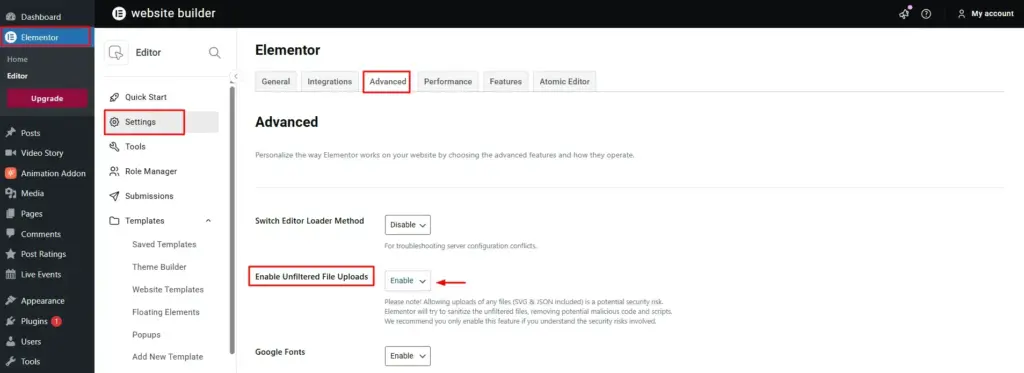
Note: In Elementor, if the Unfiltered File Upload option is disabled, SVG files cannot be uploaded. To enable this feature, navigate to Elementor ➜ Settings ➜ Advanced ➜ Enable Unfiltered File Upload, and then turn it on by selecting the Enable option.
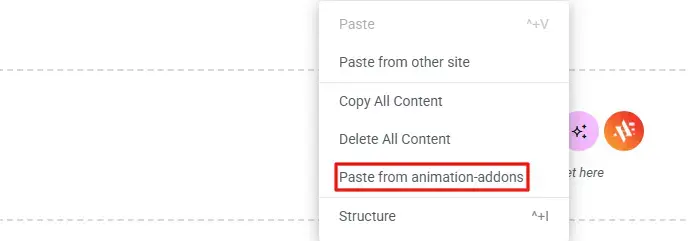
Finally, go back to your Elementor dashboard. Right-click and select ‘Paste from Animation Addons’.
Right after you click, the section will appear on your Elementor dashboard.
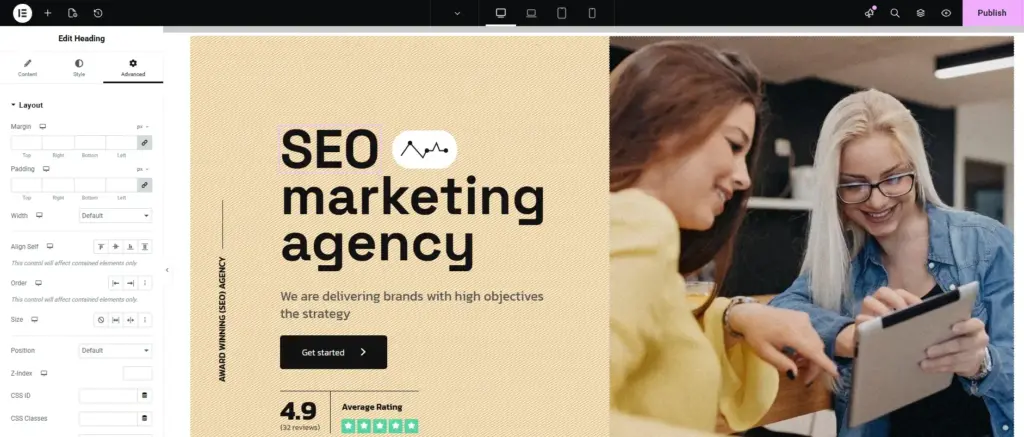
Final Output
Live Copy Paste (Another Simple Way)
Live Copy Paste features allow you to copy an entire live page or specific sections. Go to animation-addons.com, where you will find the Starter Template and 10K Section.
As you seen above, how to live copy from the Starter Template, now, let’s see how to live copy from the 10K Section.
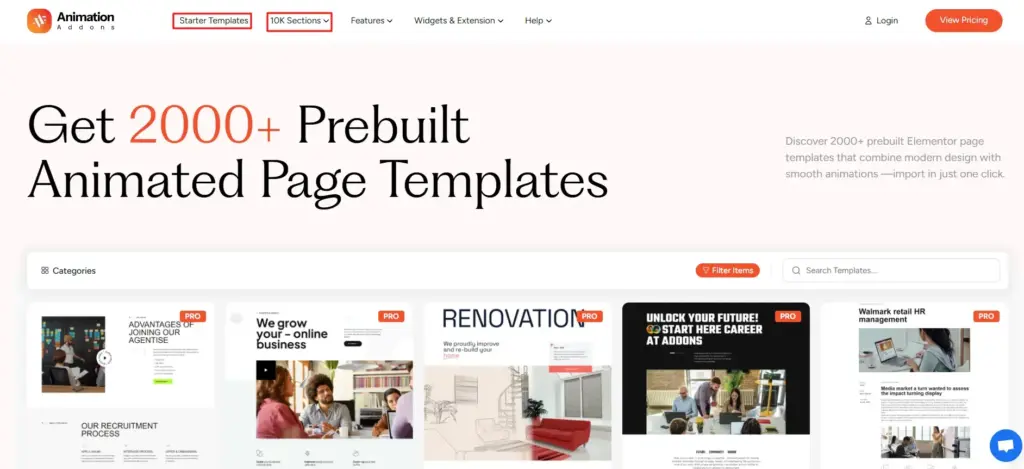
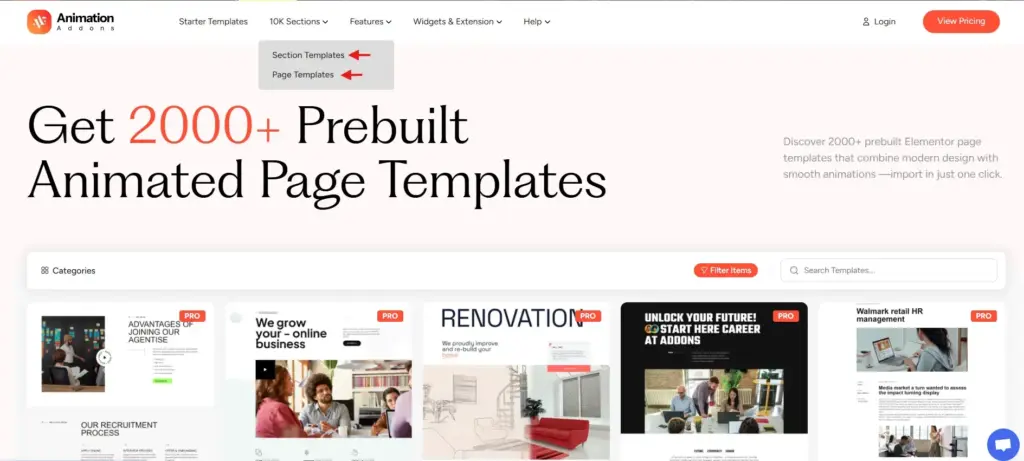
Click on 10K section, you will find Section Templates and Page Templates.
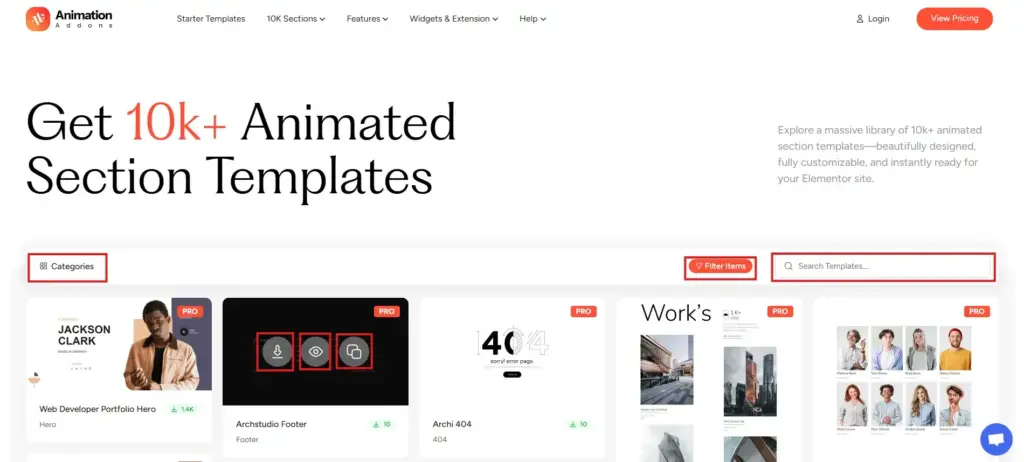
If you click on Section Templates, you will find categories, filters, and a search bar to help you pick a section. These options help you be more specific and find your desired section easily.
On top of that, if you hover your mouse over any section, the Download, Live Preview, and Copy options will appear instantly.
If you want to import a template, choose Download. If you just want to take a quick look, click Preview. Or, you can select Copy to add a specific section to your site.
On the other hand, if you click on Page Templates, you will find the same options as in Section Templates.
However, when you hover your mouse over any specific template, the Download, Preview, and Copy options will not appear at that moment.
Instead, you will have a Live Preview option.
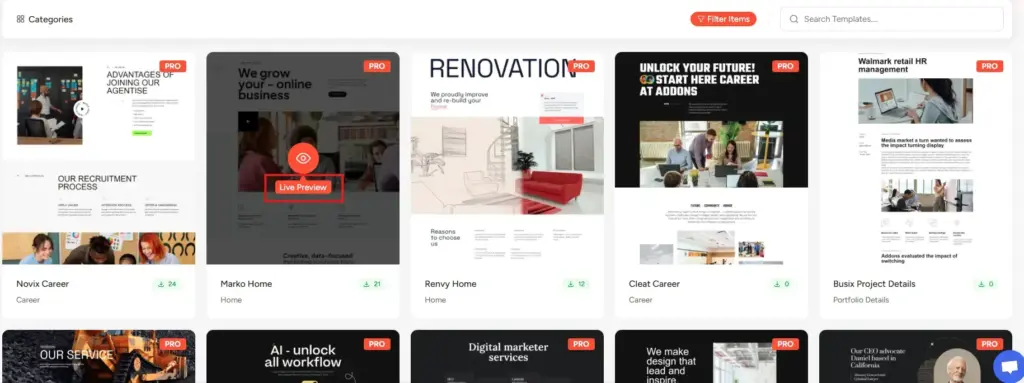
Once you click on the Live Preview option, the Download and Copy options will appear on the right side of your screen. However, they will not work as a section template.
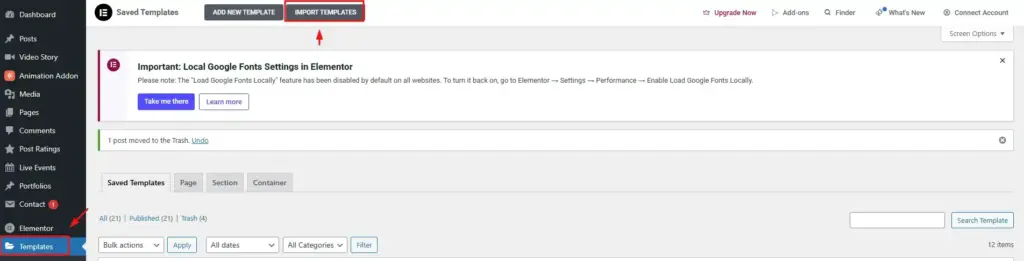
Since a page template is a full page layout, it will not paste into the editor panel. To use the full page, you need to import it from the editor panel dashboard.
Additionally, you can use the Download option to save the page template and then import it into WordPress.
No-Code Customization
After installing Animation Addons, you can add scrolling animations like sticky elements directly from the editor panel without coding.
Follow the step-by-step video guide to add scrolling animations.
2. Elementor Scroll Animations
Elementor makes it easy to create modern scrolling animations visually without writing code.
Users can apply effects like fade-ins, sticky sections, scrolling movement, parallax, and interactive animations directly from the editor panel.
Many advanced Elementor animation add-ons also support powerful GSAP-based scrolling effects for creating more interactive experiences.
Follow the video tutorial below to learn how to create scrolling animations step by step.
3. Webflow Interactions
Webflow includes a powerful visual interaction system that allows users to create advanced scrolling animations without coding.
Users can build parallax effects, sticky scrolling sections, reveal animations, and interactive motion-based layouts directly inside the Webflow designer.
Webflow is especially popular for creating highly interactive and visually polished websites.
Follow the video tutorial below to learn how to create scrolling animations in Webflow step by step.
4. Framer Scroll Effects
Framer makes it easy to create smooth and modern scroll-based animations visually.
Users can design sticky sections, scrolling transforms, layered animations, and interactive transitions without writing code.
Framer is widely used for creating startup, SaaS, and highly animated modern websites.
Follow the video tutorial below to learn how to create scroll effects in Framer step by step.
5. GSAP-Based No-Code Plugins
Many modern no-code animation plugins now use GSAP to create smooth and professional scrolling animations visually.
These tools allow users to build advanced effects like text reveals, pinned scrolling sections, horizontal scrolling, and interactive timelines without coding.
GSAP-powered tools are ideal for creating premium animation experiences with better performance and smoother motion.
Follow the video tutorial below to learn how to create GSAP-based scrolling animations step by step.
Best Practices for Scroll Animations
Scrolling animations can improve websites significantly, but overusing them can hurt performance and usability.
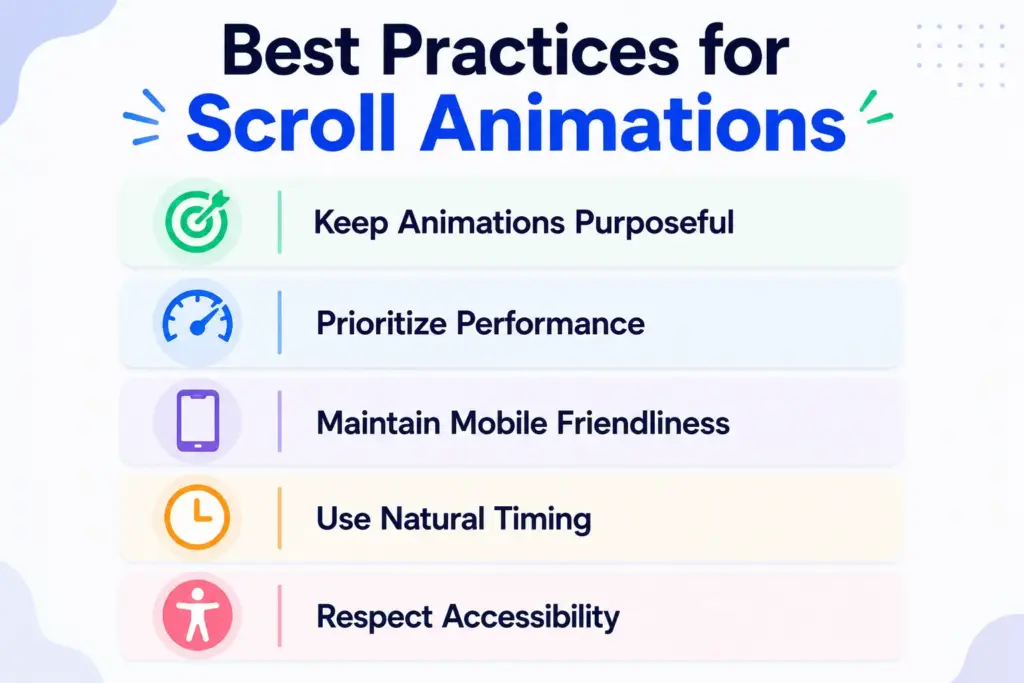
Here are some important best practices to follow.
Keep Animations Purposeful: Every animation should support usability, storytelling, or branding. Avoid adding motion just for decoration, and do not animate every element on the page.
Prioritize Performance: Heavy animations can slow down websites and affect user experience. Optimize images, reduce excessive effects, use lightweight animation systems, and avoid unnecessary JavaScript whenever possible.
Maintain Mobile Friendliness: Animations should run smoothly across all devices, especially on mobile. Some complex effects may need reduced motion settings for smaller screens.
Use Natural Timing: Animations should feel smooth and balanced. Extremely fast animations can feel distracting, while overly slow effects may frustrate users.
Respect Accessibility: Some users are sensitive to motion effects. Supporting reduced-motion preferences helps create a more accessible browsing experience for everyone.
Common Mistakes to Avoid
Scrolling animations can make a website feel modern and interactive, but poor implementation often creates the opposite effect.
Many websites add animations without considering usability, performance, or the overall browsing experience.
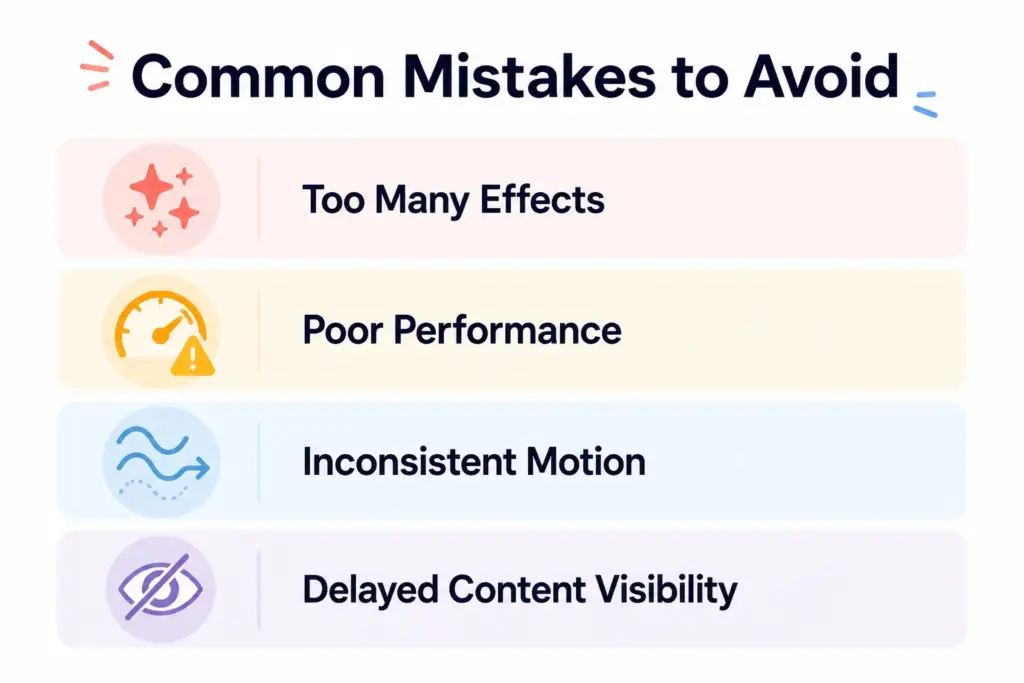
Here are some of the most common mistakes to avoid when using scrolling effects.
Too Many Effects
One of the biggest mistakes is adding animations to almost every element on the page. When everything moves, fades, slides, rotates, and scales at the same time, the website starts to feel chaotic instead of engaging.
Excessive motion can distract visitors from the actual content and make the browsing experience overwhelming.
The best animated websites use motion selectively to guide attention naturally and support the overall design.
Poor Performance
Heavy scrolling effects can slow down a website significantly, especially on mobile devices or lower-end computers.
Large animations, oversized images, and poorly optimized scripts may cause lag, stuttering, or delayed interactions during scrolling.
A smooth experience is always more important than adding complex visual effects. Optimizing assets and using lightweight animation systems helps maintain better performance.
Inconsistent Motion
Using different animation styles across multiple sections can make a website feel unorganized and unprofessional.
For example, if one section uses subtle fade animations while another uses aggressive zoom effects and fast rotations, the overall experience may feel disconnected.
Consistent motion design helps create a cleaner and more polished user experience throughout the website.
Delayed Content Visibility
Animations should never prevent users from accessing content quickly.
Some websites use long animation delays or oversized transitions that force visitors to wait before reading text or interacting with buttons.
This often creates frustration instead of engagement. Good scrolling animation should enhance the experience while still allowing users to consume content naturally and efficiently.
Final Thoughts
Scrolling animations are now a big part of modern web design. They help websites feel more interactive, smooth, and enjoyable to explore.
The best websites do not use animation just for decoration. Instead, they use motion carefully to guide visitors, highlight important content, and create a better browsing experience.
The good thing is that creating these effects is much easier today. With modern no-code tools, anyone can build professional scrolling animations without advanced coding skills.
The secret is knowing where to stop. Good animation should improve the experience, not distract visitors from it.
FAQs
Which scrolling animation is best for beginners?
Fade-in and slide animations are usually the best starting point for beginners. They are simple to create, lightweight, and improve the overall browsing experience without making the design feel overwhelming.
Can scrolling animations improve user engagement?
Yes, when used properly, scrolling animations can help guide attention, improve storytelling, and encourage users to explore more sections of a website. Subtle motion often helps websites feel more interactive and visually polished.
Are scrolling animations good for business websites?
Yes, many business websites use scrolling animations to present services, showcase products, highlight features, and create more professional-looking landing pages. However, animations should support the content instead of distracting visitors.
Should every section of a website have animation?
No, adding animation to every section often makes a website feel distracting and cluttered. The best animated websites use motion selectively to improve usability, storytelling, and visual flow rather than overwhelming users with constant movement.

Leave a Reply